¶ Main Window
The 3D visualization window in the auctoria plugin is optimized for immediate rendering.
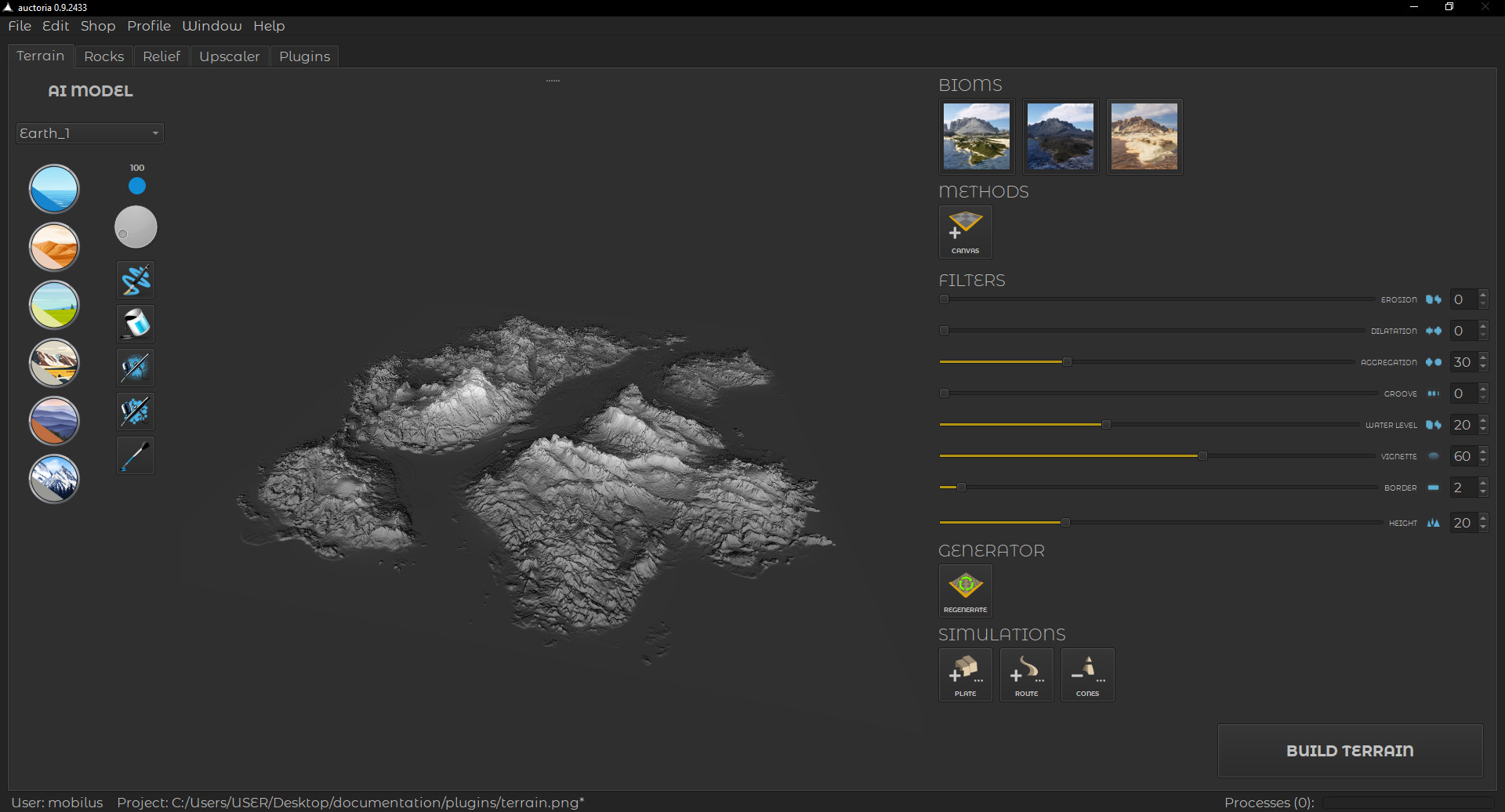
The plugin window resembles the standard interface of a desktop application and is organized into tabs based on the types of objects being generated. However, keep in mind that this plugin runs inside the Unreal Engine, which serves as the host system and captures keyboard shortcuts. The layout of components is consistent across all tabs, and is discussed using the Rocks tab (figure below).
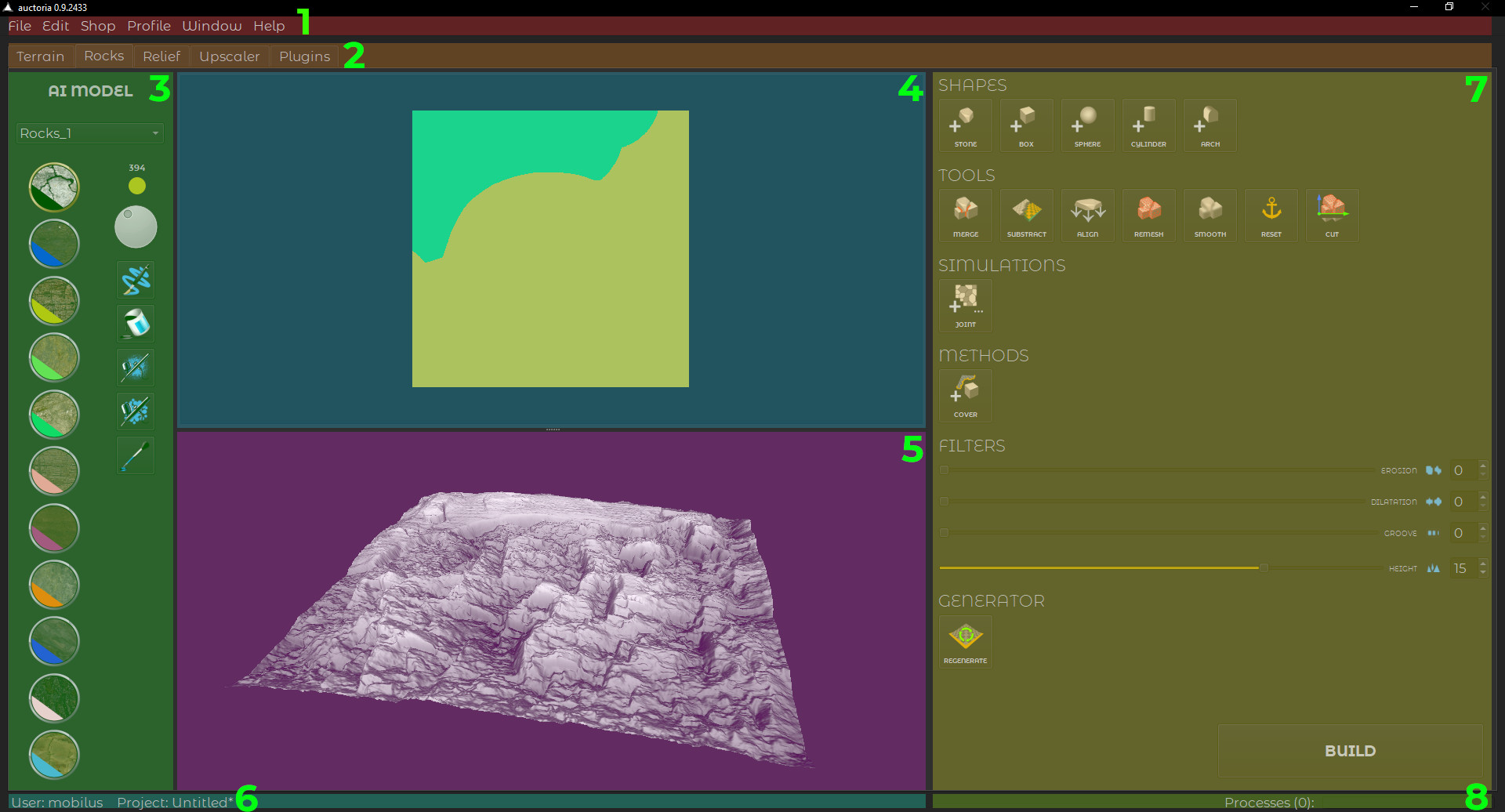
The main interface sections are described in the following points:
- Menu Bar
- Tabs
- Painting Tools Section
- Painting Area
- 3D Visualization Panel
- Info Section
- Tools Panel
- Process Section
A detailed explanation of the sections above is described in more detail in the following paragraphs.
¶ Menu Bar
At the top of the interface, you'll find the Menu Bar, which includes standard options such as File, Edit, Shop, Profile, Window and Help.
¶ File
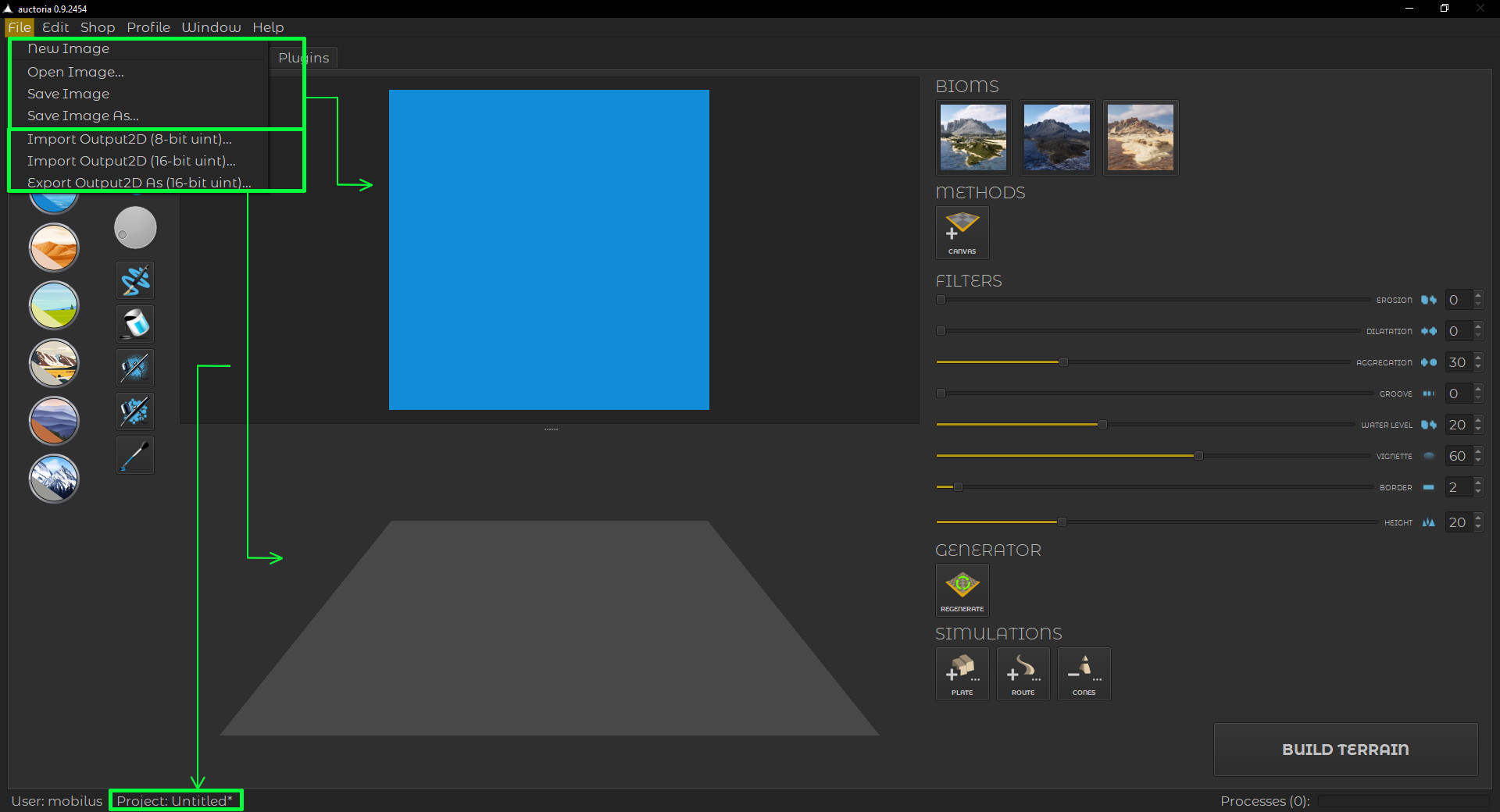
The File Menu can be divided into two groups: the first relates to the Segment Map (New Image, Open Image..., Save Image, Save Image As...), while the second concerns the output geometry represented by a 2D image (Output2D).
¶ Edit
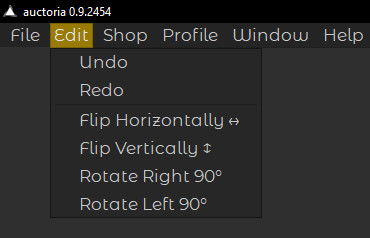
The Edit Menu contains editing functions for the Segment Map, but it does not support keyboard shortcuts for Undo and Redo. These shortcuts are intercepted by the Unreal Engine. To undo changes to the Segment Map, you must manually click the Undo option in the Edit Menu.
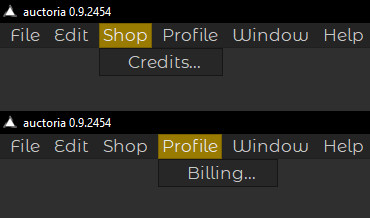
¶ Shop and Profile
The Shop Menu and Profile Menu do not contain many options in the current version of the plugin, but in short, they are used to manage your credit balance and payment information.
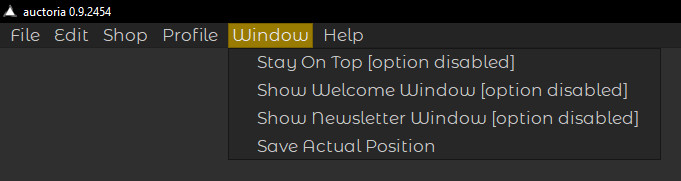
¶ Window
The Window Menu provides functions related to the plugin's window layout and configuration.
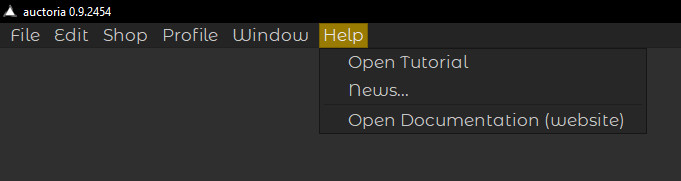
¶ Help
The Help Menu provides useful links and information about recent updates and new features.
¶ Tabs
Below the menu bar are the application Tabs containing the main modules, such as Terrain, Rocks, Relief, and so on. Each tab provides tools dedicated to the specific type of object being generated.
¶ Painting Tools Section
This area contains tools for painting 2D images (segment maps) and a field for selecting the AI model. The brush size and airbrush painting area can be adjusted using the knob by turning it left or right. For more precise control, right-click the knob and use the up/down arrow keys on the keyboard.
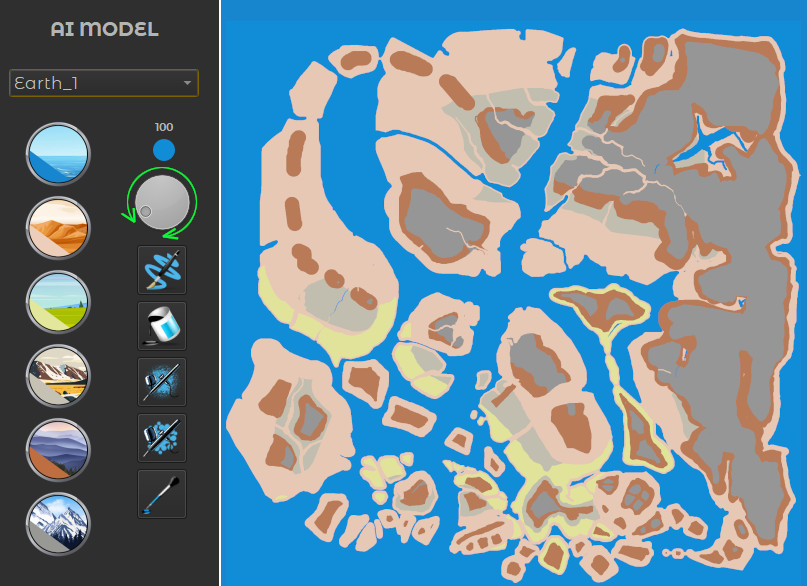
¶ Painting Area
The Painting Area is the canvas where users paint 2D segment maps using the selected tools and settings (see Fig. 8).
¶ 3D Visualization Panel
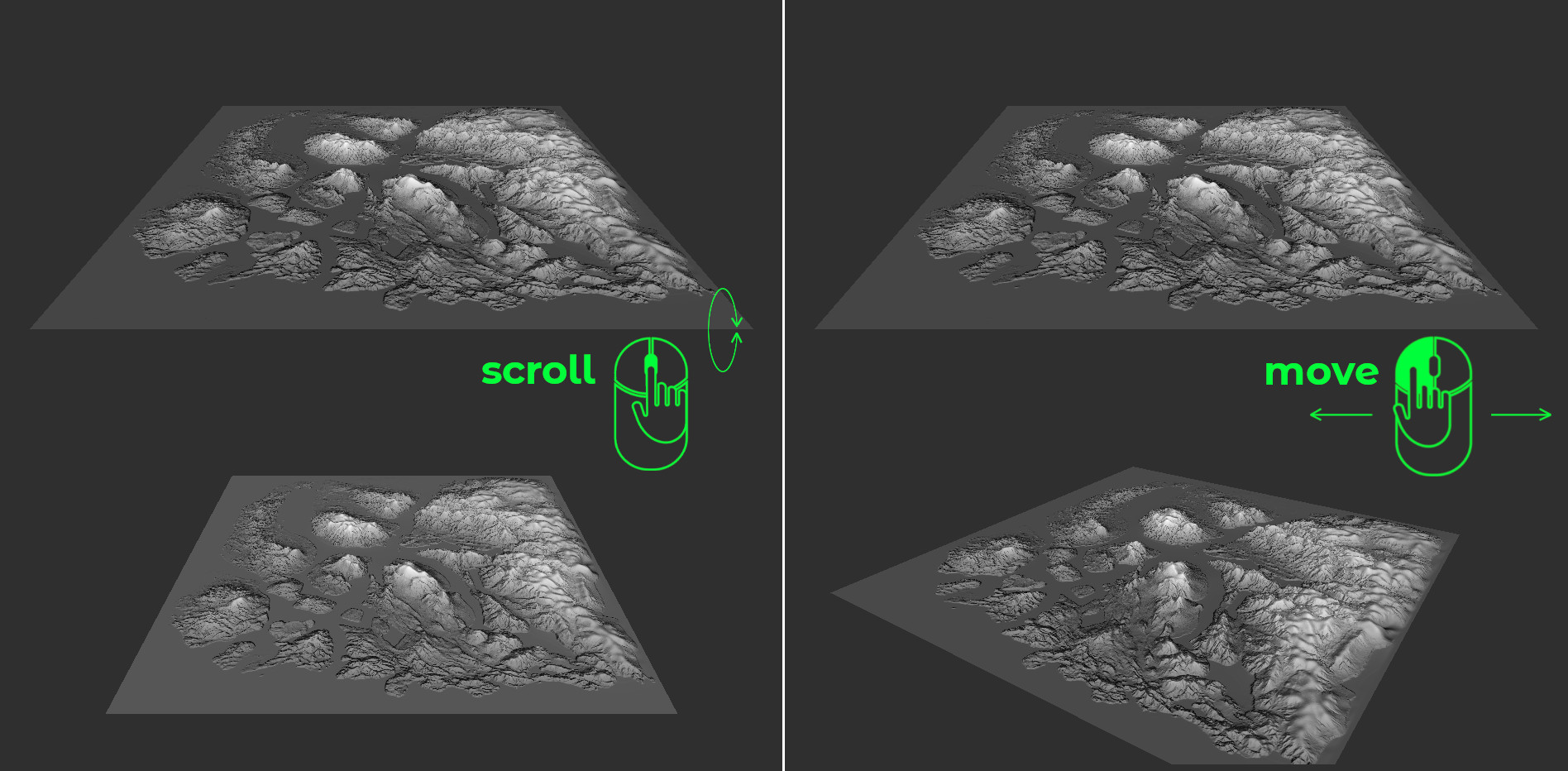
The 3D Visualization Panel displays a 3D preview of the object or its part. The camera angle in the 3D preview can be adjusted using the mouse wheel or by moving the mouse left and right while holding down the left mouse button.
¶ Info Section
The Info Section provides essential information about the user and the project.
¶ Tools Panel
The Tool Panel contains tools dedicated to generated objects, which may vary depending on the type of object being generated (tabs). The categories and tools in this section are discussed in detail within the description of the individual tabs.
¶ Process Section
This section contains components that inform about the number of running processes and the progress. Unlike standard progress bars, which move from 0 to 100%, in this case the maximum value represents the total number of concurrent processes involved in creating an object or performing an operation, and it decreases to zero as the processes complete.