¶ Overview
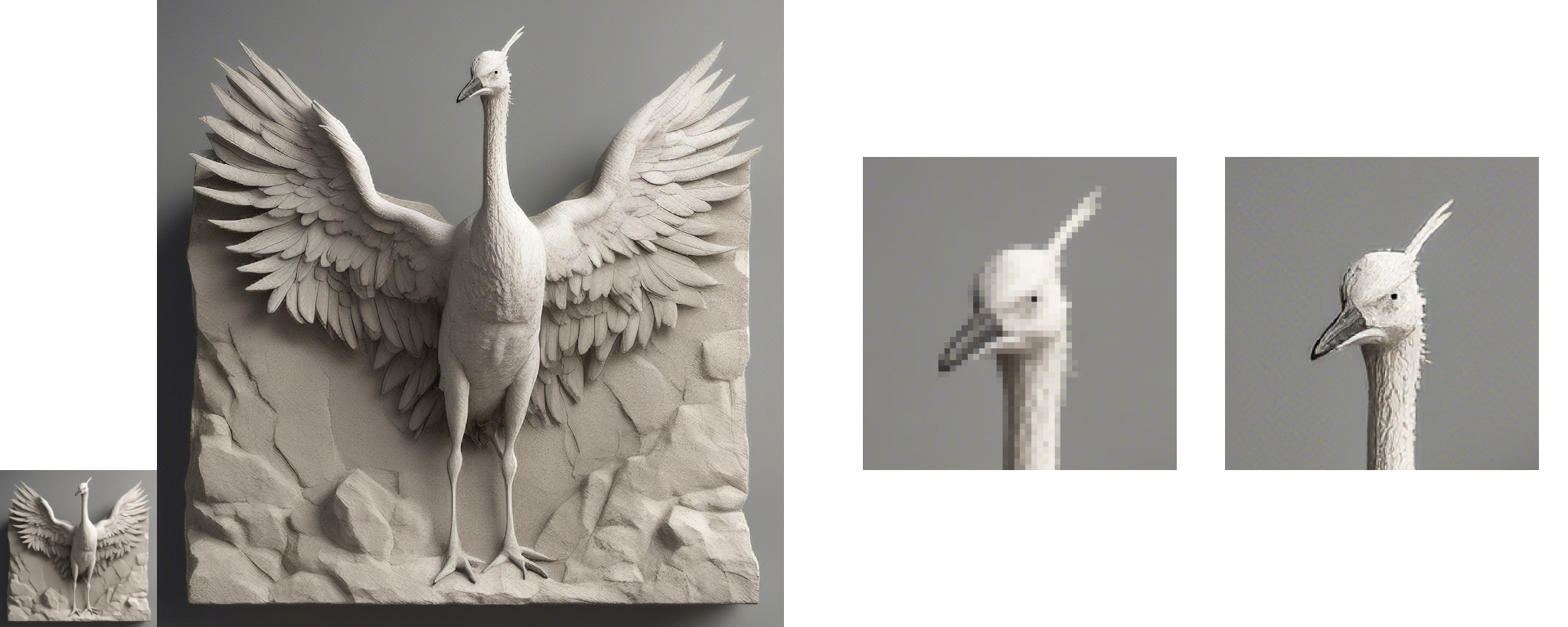
The Upscaler Module allows you to enlarge images to a target resolution of your choice. It supports both image files from the Windows file system and textures from Unreal Engine. The module works with standard 8-bit images containing 1 (grayscale), 3 (RGB), or 4 (RGBA) channels (resolutions 4086 and 8192 are currently not supported).
¶ Introduction to the Upscaler Module Using External Files (Windows Explorer)
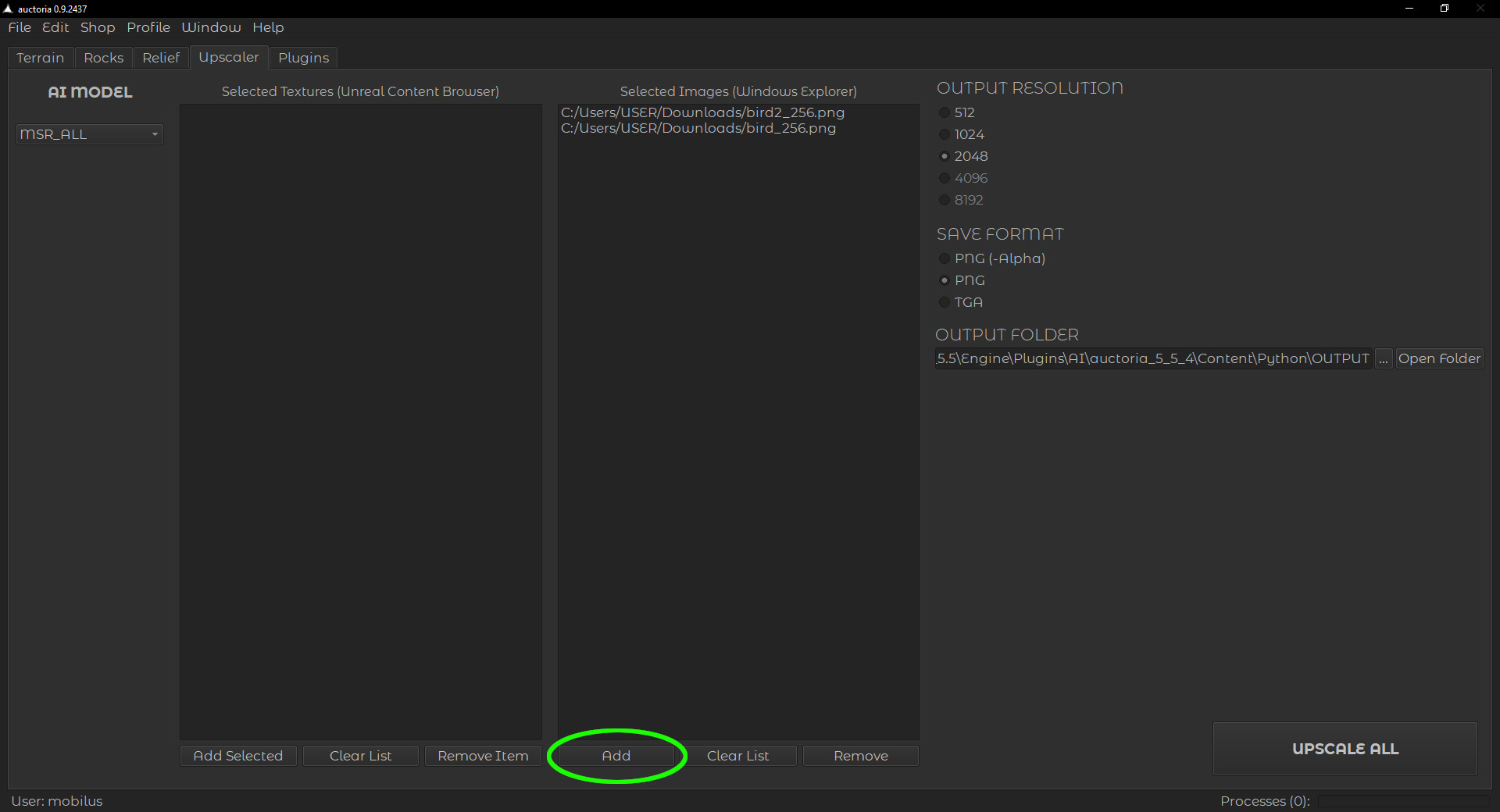
To upscale images stored anywhere on your system, click the Add button (as shown in the figure below) and select files from your hard drive. The selected files will appear in the Selected Images list.
Before clicking the UPSCALE ALL button, it's recommended to click Open Folder to verify that the destination folder for the upscaled images actually exists. The processing time depends on the upscaling factor. The upscaled images will be saved in the OUTPUT FOLDER.
¶ Introduction to the Upscaler Module Using Unreal Textures (Unreal Content Browser)
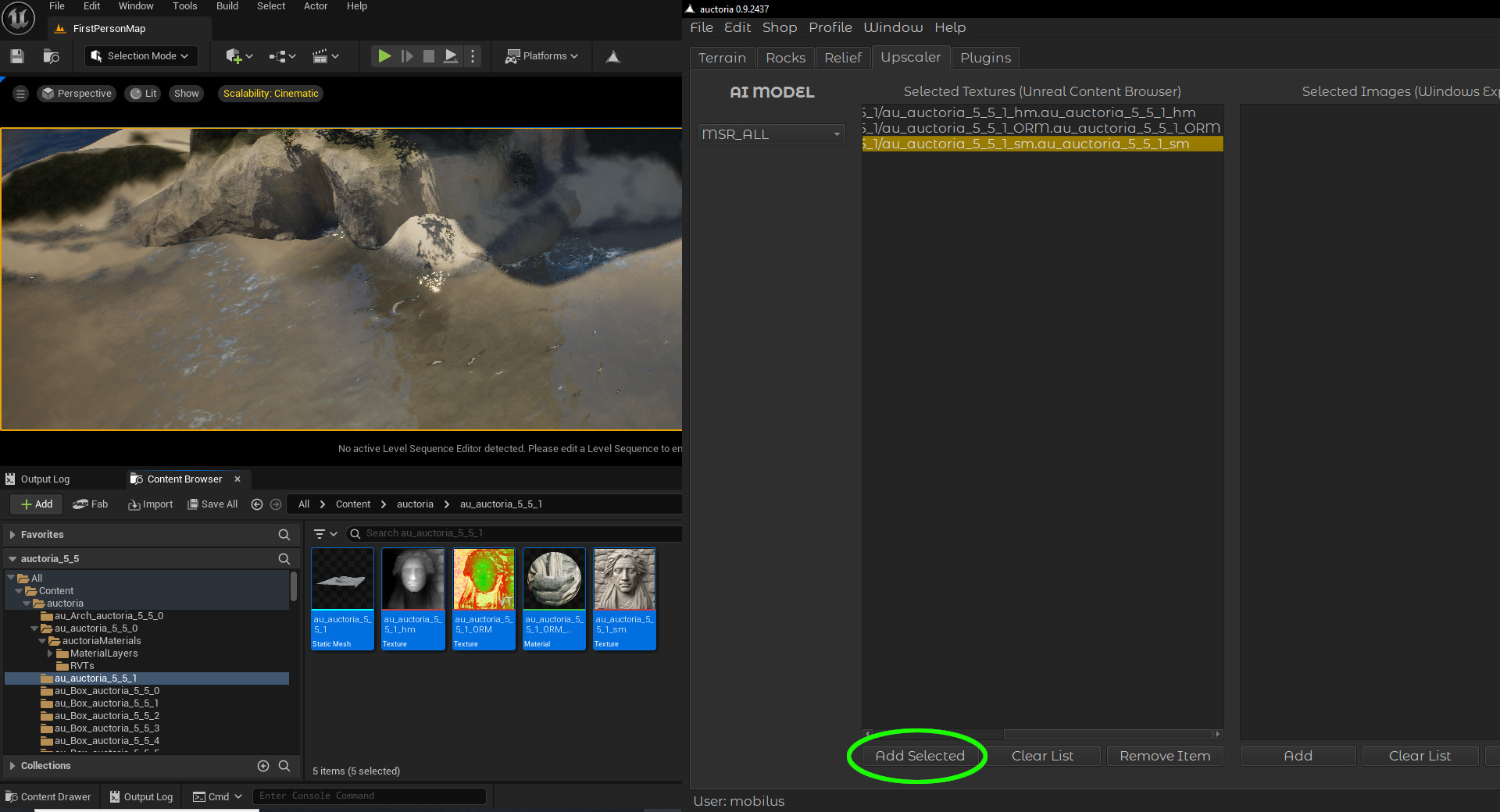
The process for handling images (textures) in Unreal Engine is very similar — you select the images in the Unreal Content Browser and then click Add Selected. You can select all files, but only textures will be added to the list.
¶ ⚠️ Note: Issues with exporting certain texture formats
Unreal Engine may encounter difficulties when exporting textures in certain formats, such as:
- 16-bit (e.g., PF_FloatRGBA, PF_R16G16B16A16)
- compressed (e.g., DXT1, DXT5, BC7, ASTC)
- HDR (e.g., PF_FloatRGB)
In such cases, the export may result in an error, a corrupted output file, or — in some versions — cause the editor to crash. This is a known engine limitation and applies only to specific texture formats.
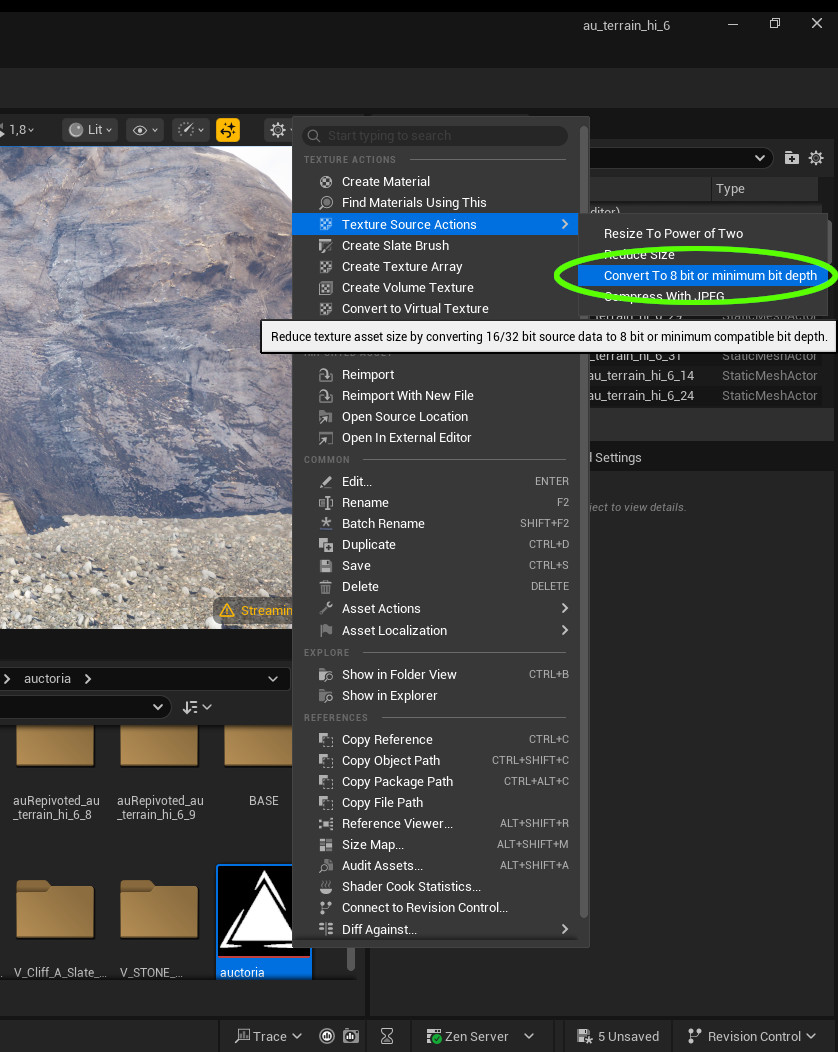
Most issues can be resolved by reducing the image depth to 8-bit, as shown in the figure below (right-click on the texture).