¶ Overview
Plugins are extensions that add new features or improve the functionality of the core system. Thanks to its modular structure, auctoria can evolve dynamically, allowing users to work only with the tools they truly need.
¶ Introduction to the Plugins Using a Simple Example
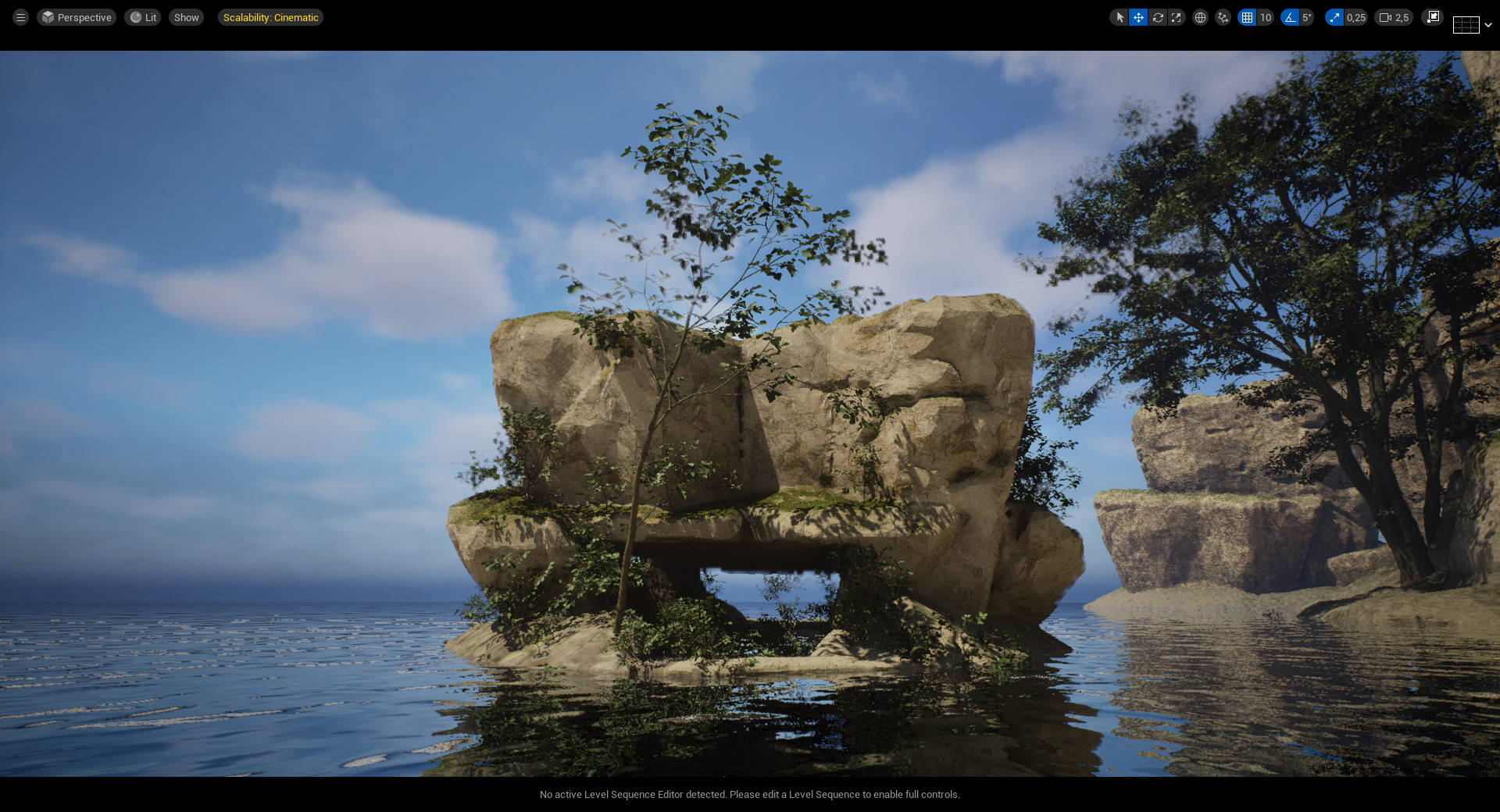
The functionality of the plugins can be demonstrated with a simple example of generating a cliff-type rock, as shown below.
¶ Search Bar
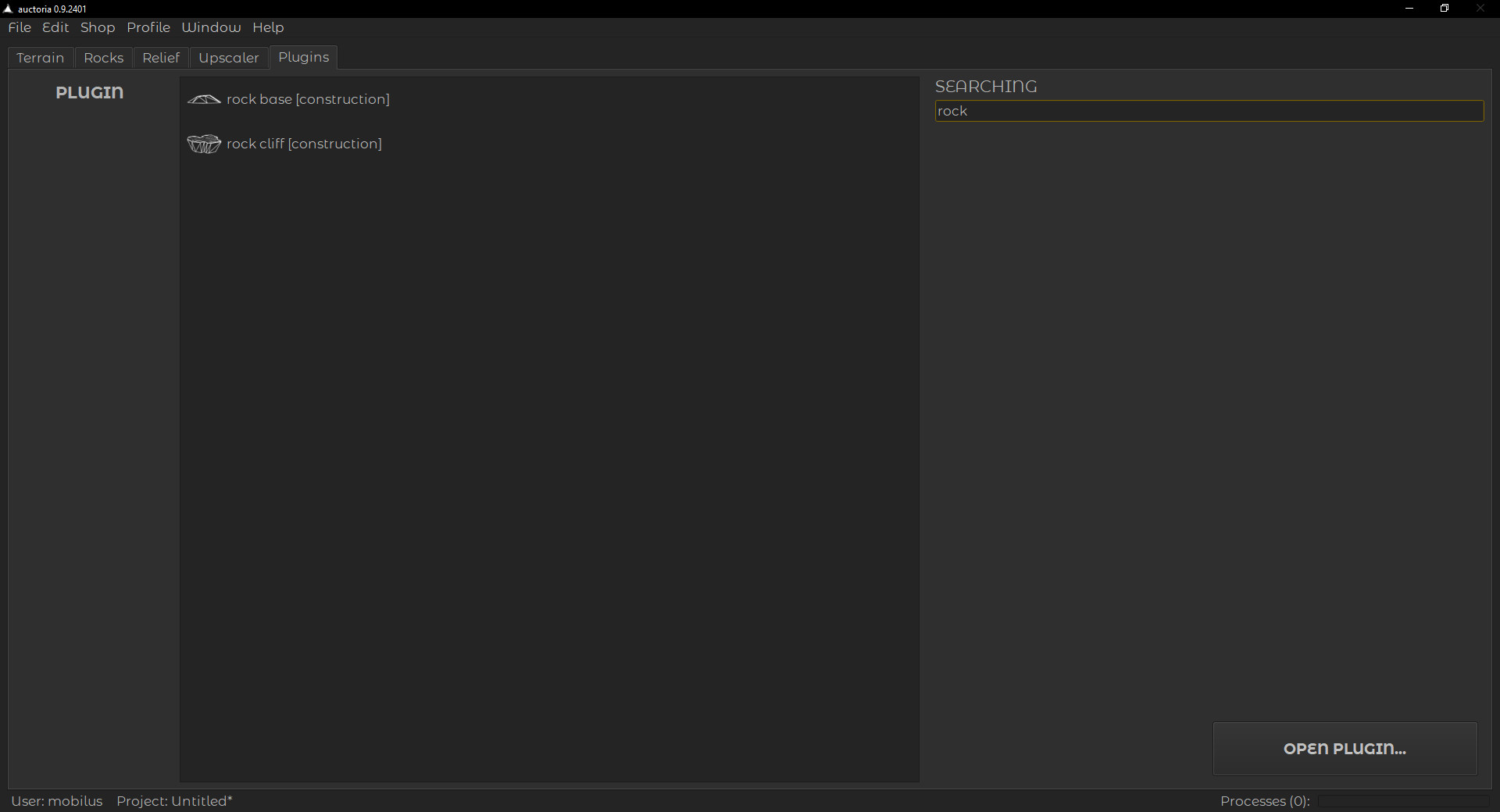
The list of available plugins can be found under the Plugins tab and includes a search bar, as shown in the illustration below (SEARCHING section).
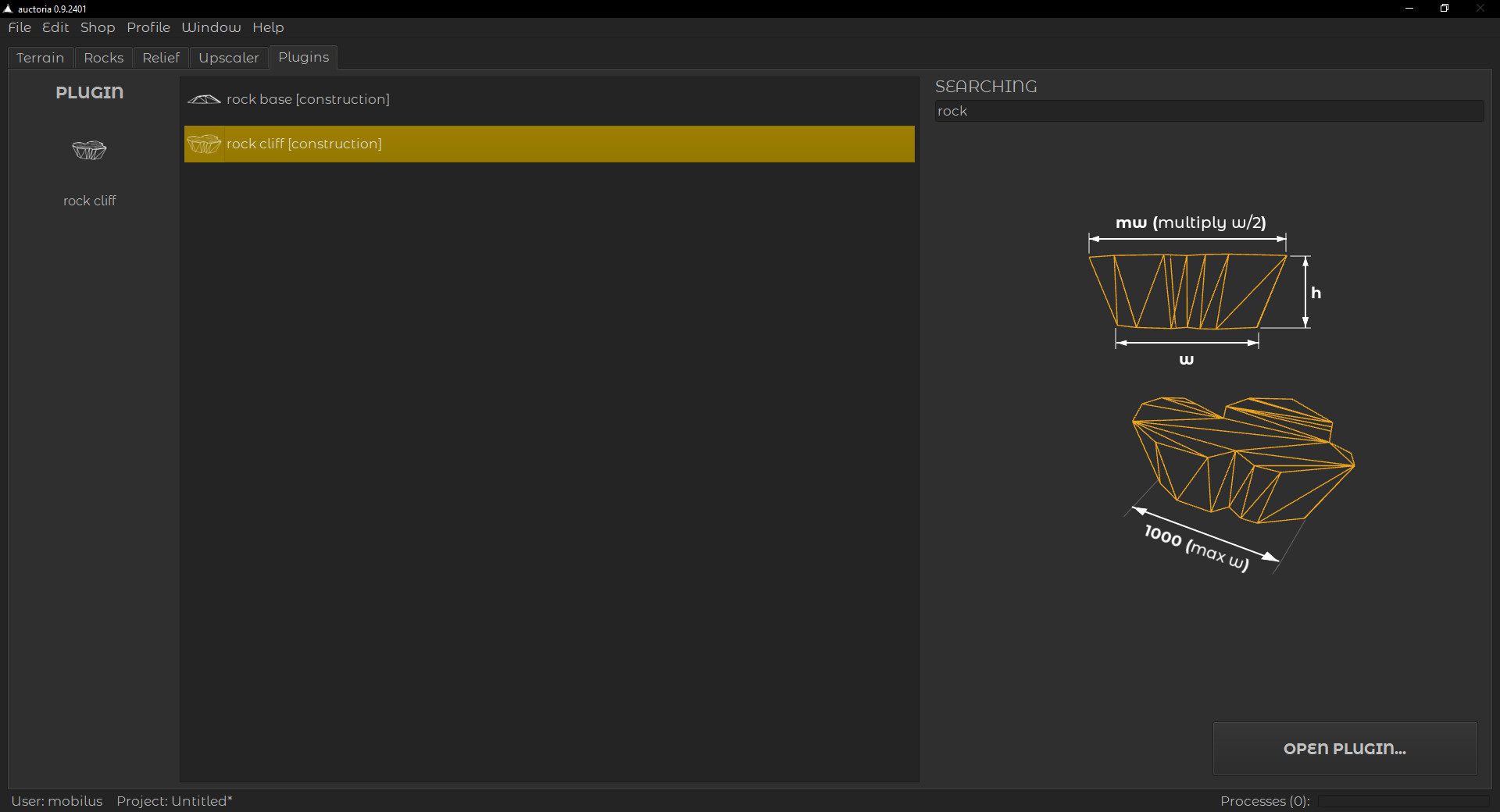
Each plugin has its own icon and a schematic illustration that shows how it works.
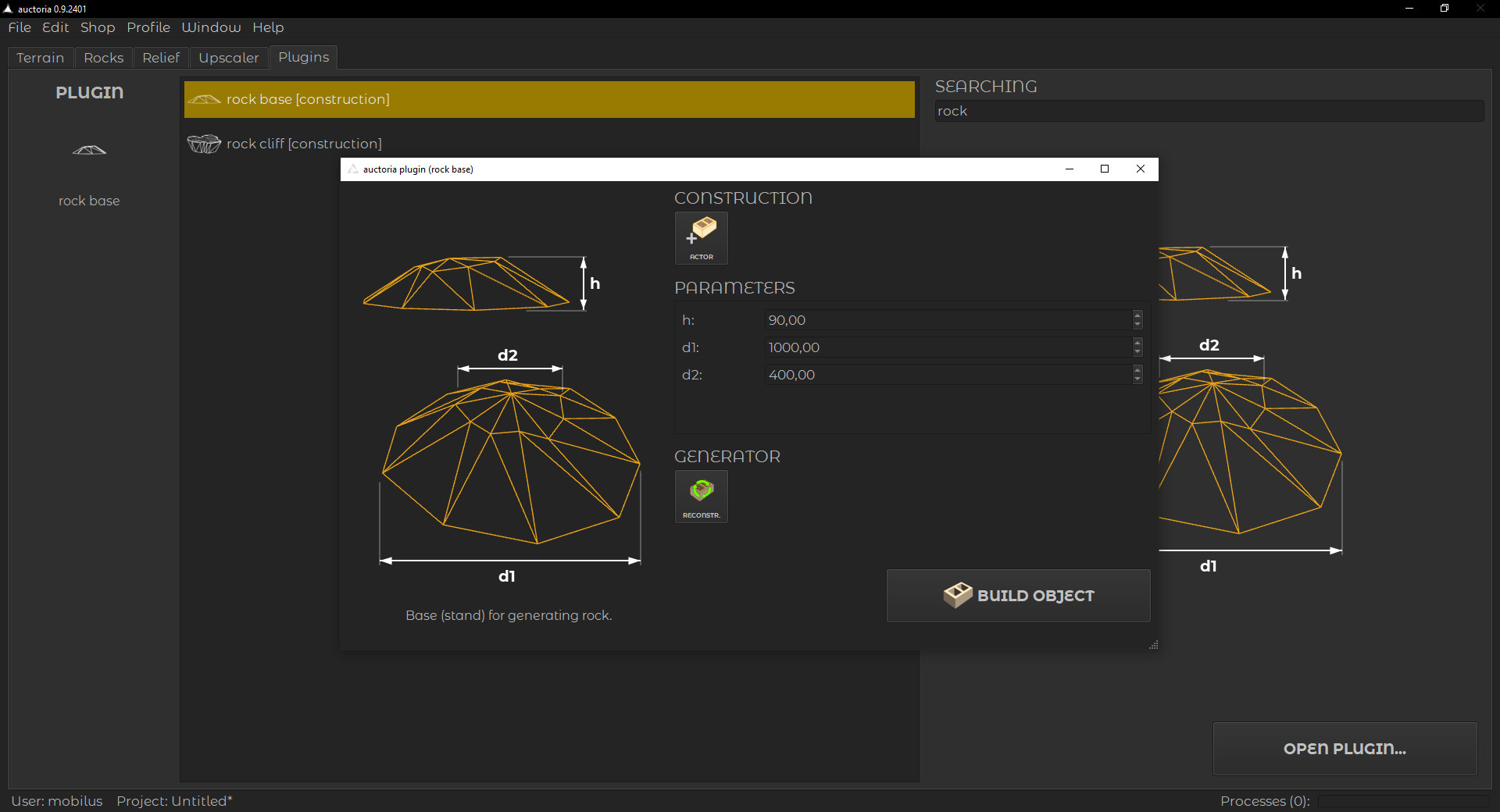
You can activate a selected plugin by double-clicking it in the list or by clicking the Open Plugin... button. As you can see in the picture below, the plugin tool layout is similar to the rock module layout: first the basic object, then the parameters, generator (RECONSTR.) and build the object.
¶ Plugin-Based Rock Shaping
To start working with the construction of your rock you must first add an Actor to the scene (click on the ACTOR button).
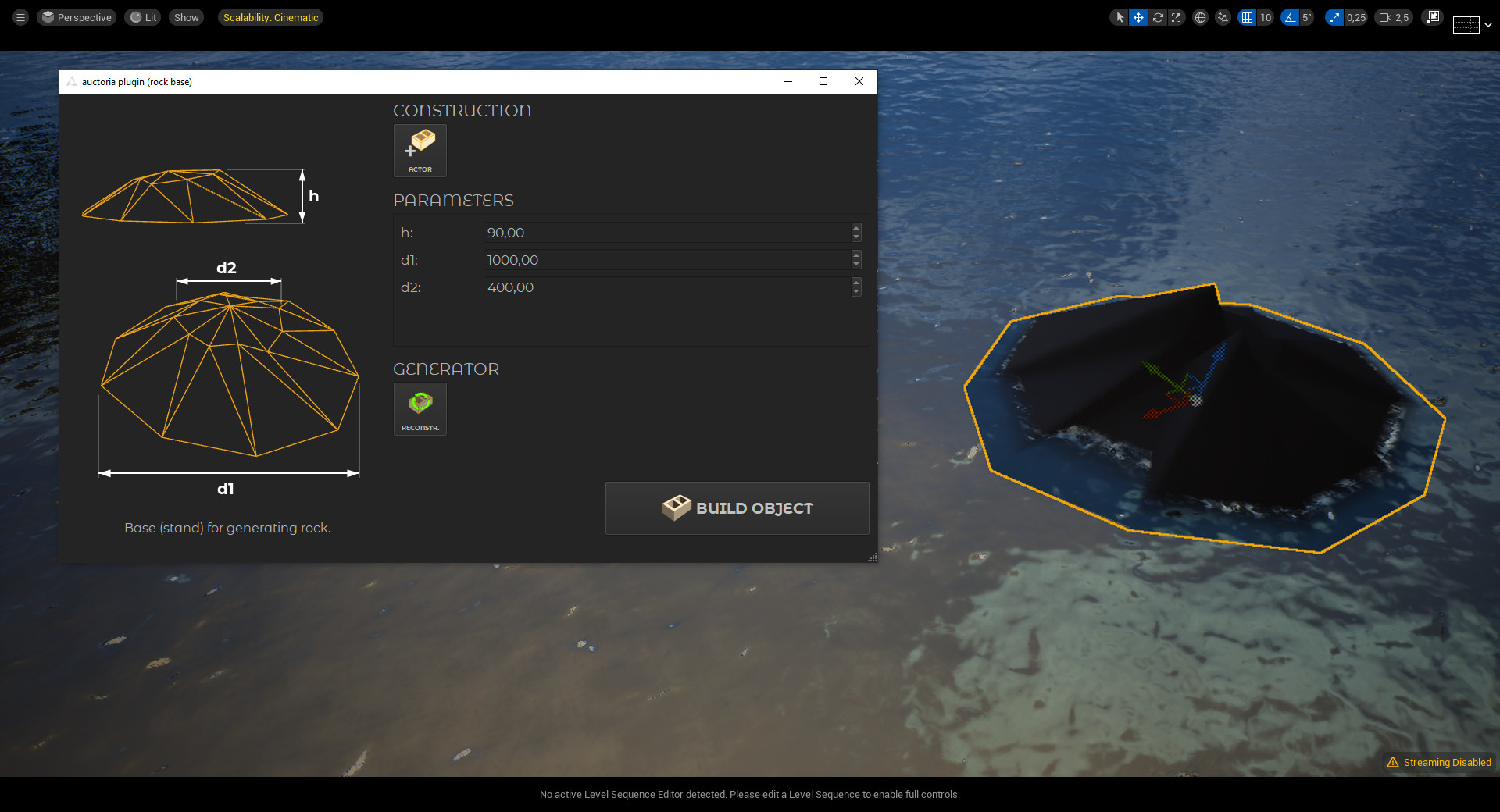
You can refresh each parameter change by pressing the RECONSTRUCT button, but the most practical solution is to change the parameter using the mouse wheel with the Enter key held down. This solution allows you to adjust parameters and basic shapes to your needs in real time.
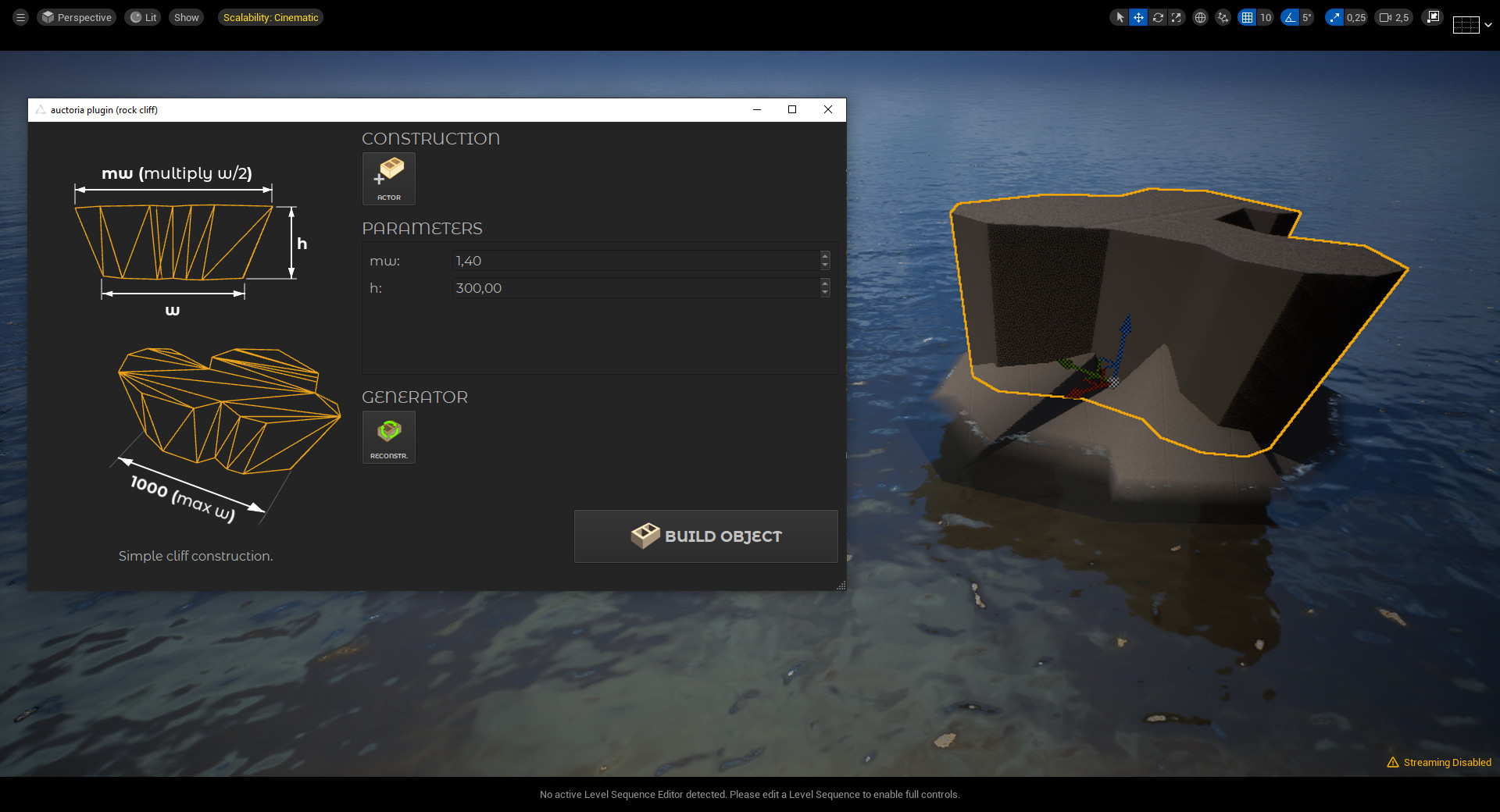
Changes in parameter values change the basic size of the construction, but many of its parameters are chosen randomly according to predefined patterns. If, after another refresh (reconstruction), the appearance of the element satisfies you, click on the BUILD OBJECT button, which will create a static mesh. Static meshes can be further modified by basic tools from the Rocks tab, as shown in the image below. Once you have finished working on the basic shape, it is a good idea to rebuild the mesh (REMESH button) - densifying the mesh will enable a nicer preview of the Cover method in the rock building stage (Rocks tab).
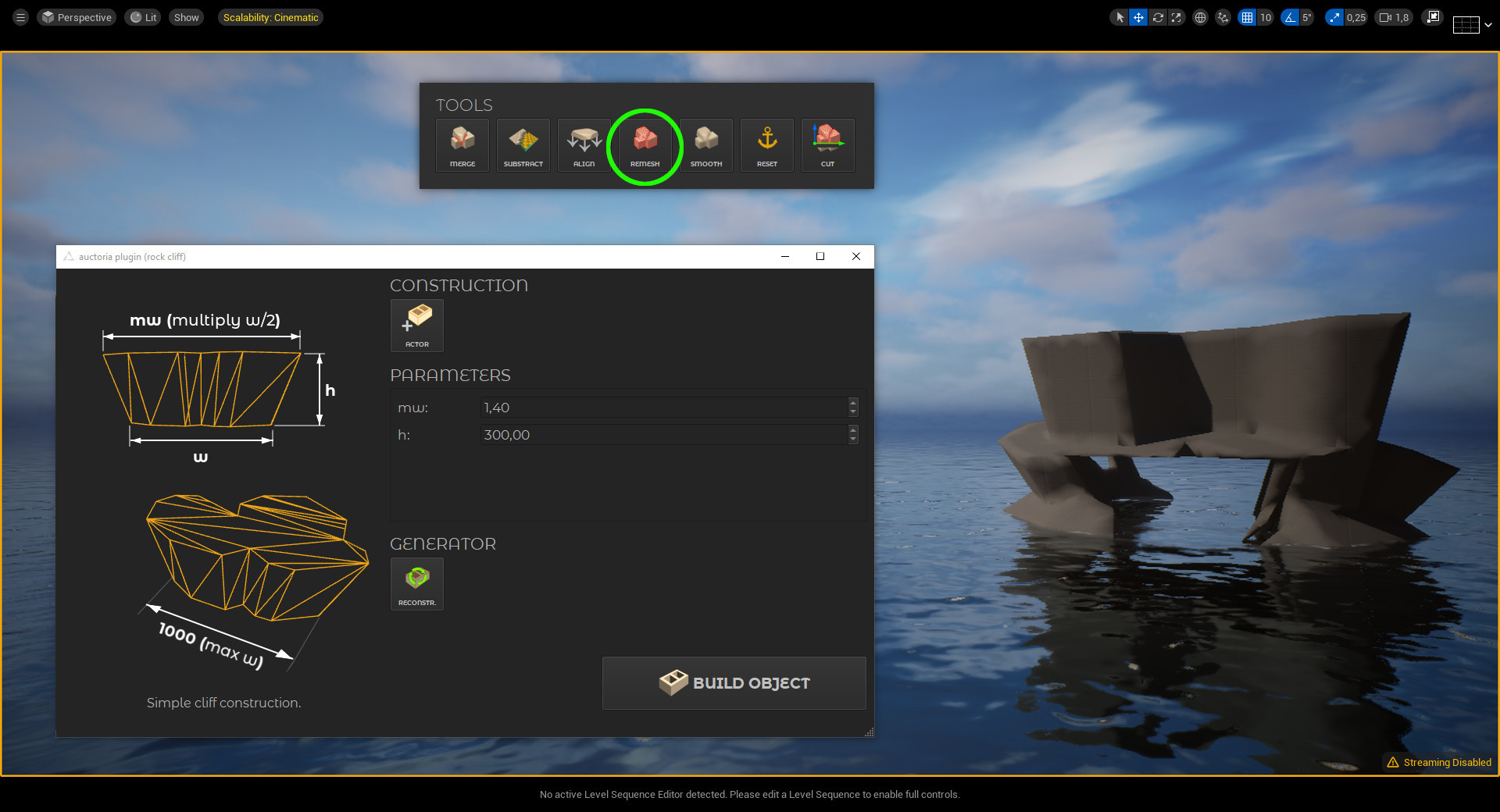
You can use the basic rock shape you built with the plugins to build a rock in the Rocks tab.